Connect Claude Code
Add AgentTx to Claude Code with one command, check the connection and run your first protected task.
Claude Code is Anthropic's AI coding assistant for the terminal. Connecting AgentTx takes one command.
Before you start
- AgentTx is installed and
agenttx --versionworks (Step 1–2 of the overview). - Claude Code is installed and you have signed in at least once (run
claudein a terminal).
Step 1 — Add AgentTx
In your terminal, run:
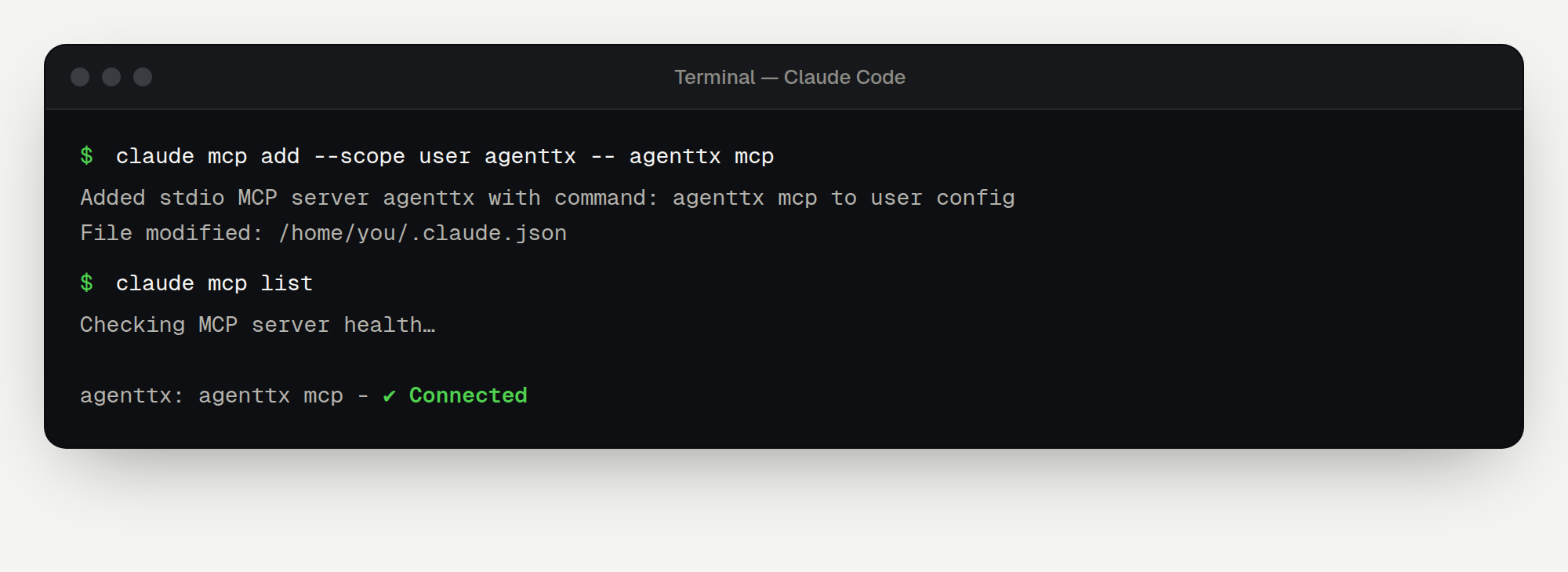
claude mcp add --scope user agenttx -- agenttx mcpWhat each part means:
| Part | Meaning |
|---|---|
claude mcp add | Add a tool server to Claude Code |
--scope user | Make it available in every project on this computer |
agenttx | The name Claude Code will show |
-- agenttx mcp | The command Claude Code runs to start AgentTx |
Step 2 — Check the connection
claude mcp listYou should see agenttx with ✓ Connected:
You can also start Claude Code with claude and type /mcp. AgentTx appears in the list of servers, with its six tools.
Step 3 — Ask Claude to use AgentTx
Start Claude Code in any folder:
claudeThen paste this request:
Use the AgentTx tools for this task. Begin a transaction, save the customer id
"c-404" with kv.put, then create invoice "inv-1" for that customer with
record.insert (reference customer_id to the customers table).
If AgentTx rolls back, follow its hint, then commit the transaction.
The first time Claude uses an AgentTx tool, Claude Code asks for permission. Choose Yes, or allow it for the whole session.
To see what happens next, step by step, read Your first safe task.
Remove AgentTx
claude mcp remove --scope user agenttxHaving trouble?
See Troubleshooting. The most common fix is to use the full path from agenttx connect claude-code instead of just agenttx.